Saturday, March 5, 2016

Frequently used ms-excel shortcut keys to speed up work

Hello readers, Now Its around 7 years of experience I am having in automation and reporting. I would like to share some frequently used shortcut keys in MS-Excel:

Shortcut key to  copy cell/ text/range/any excel object
- Ctrl+c (Control and c)

Shortcut key to  paste cell/ text/range/any excel object
- Ctrl+v (Control and v)

Shortcut key to fill value or formula from cell at top
 - Ctrl+d (Control and d)

Shortcut key to fill value or formula from left cell to current cell
- Ctrl+r (Control and r)

Shortcut key to go to next filled cell
-Ctrl+arrow Key (Control and any arrow key)

Shortcut key to go to next filled cell
-Ctrl+arrow Key (Control and any arrow key)

Shortcut key to select all cells from current to next filled cell
-Ctrl+shift+arrow Key (Control and shift and any arrow key)

Shortcut key to go to cell "A1"
-Ctrl+Home (Control and Home key)

Shortcut key to select table which have active cell
-Ctrl+a (Control. and a)

Shortcut key to entire sheet
-Ctrl+a Ctrl+a (control and a twice)

Shortcut key to  apply or remove filter
-Ctrl+dff (Control and d then ff)

Shortcut key to toggle between formula and value entered in a cell.
- Ctrl+~ (Control plus tilde)

Shortcut key to delete selected rows/columns/cells:
- Ctrl+ - ( Control and minus)

Shortcut key to add rows/column/cells:
- Ctrl++  (Control and Plus key)

Shortcut key to rename sheet(Tab):
- Alt+ohr (Alt and "o" then "hr")

Shortcut key to delete sheet (Tab):
- Alt+hds (Alt and "h" then "ds")


Above shortcut keys will help you to increase your speed of work. Apart from these shortcut keys you should know basic functionality of excel.


Saturday, February 27, 2016

Fixing insert object error for activeX objects in VBA macros

Some day in MS-Excel if you find your activeX controls are not working which were working fine till yesterday. So don't worry try below fixes for such issues.
Goto below mentioned paths and delete .exd files and reopen excel. 

  • %appdata%\microsoft\forms
  • %temp%\excel8.0
  • %temp%\word8.0
  • %temp%\PPT11.0
  • %temp%\vbe

If still issue persist then goto Run type appwiz.cpl and click on view install updates from left navigation bar. And remove if there are any new updates have been installed for MS-Office recently. 
Hope this will help you to resolve issue.

You can also download .msi file to fix this issue, You will get this fix at below link.

https://support.microsoft.com/en-us/kb/3025036

Write if you have any query.

Tuesday, October 13, 2015

Resolving or fixings compiler error in VBA

Hello Friends,
Most of the times we face compiler error even we have written all the code correctly.

Cause:

When we get "Compiler Error in hidden module" error that means Your excel project is missing one or more reference libraries or its not properly registered. 

Identify:
When you get such error goto VBA Editor window and check all libraries under Tool->Library and you wil find word missing before library name which is causing an error.

Fix:

If library is missing:

For temporary fix you can select lower version of library.

 For example if your project is showing Microsoft Active Data Object 6.1 library as missing then you can select Microsoft Active Data Object 2.0 which is a lower version. 

Or you can try permanent solution: Download that library and store on users machine and register it using below command

Open command prompt and type

Regsv32 "complete path of library"

If library is available on user machine and still showing as missing:

Then first unload library using below command and then register it.

Regsv32 /u "complete path of library"

How to avoid this error:

Write your library dependant object code in late binding form

Learn excel VBA online from an industry experience developer to strengthen your knowledge go for a structured VBA course. 

How to fix automation error in VBA-Marco

If you are getting automation error in your VBA protect. Then below steps possibly fix your problem:
Cause:
Such issue can arise due to mscomctl.ocx file which is an common control library
Fix:
If your project is throwing an error on specific machine then it can be a version issue of common control library. In such situations cross check version of culprit library with one on working machine. if any discrepancy found then take library from working machine and replace with culprit machine.
Mostly you will find such library in system32 folder or you can search them in file system or you can also see location in Tools->Library menu in VBA editor window of VBA by selecting respective library as shown below:

Once you replace library then register library with below command in command prompt or Run window:

Regsv32 /u "complete path of library"

to unload file then 

Regsv32 "complete path of library"

to register file. if you get any error then try with admin access.

Thursday, April 9, 2015

Questions

You can post your questions in comments section of this post and I will revert you back.

Thank you

Thursday, November 6, 2014

How to use dynamic array in VBA / macro

Sorry Pravin to keeping your query waiting. You asked me a query about how to use dynamic array in VBA but in my last post I explained about basic use of array but my blog is for all the readers ;-).
So here we go, We get into such scenario where we actually doesn't know what length of array we would need in our program and here dynamic array helps you. Lets check a example program:
Ex1:

Sub MyDynArray ()
Dim MyArr() as integer, iArrLenghth as Integer, iCntr as Integer
iArrLenghth =  Sheet1.Range("A1").End(xlDown).Row
Redim Preserve MyArr( iArrLenghth-1)
For iCntr = 0 To iArrLenghth
   MyArr(iCntr) = Sheet1.Range("A" & iCntr+1)
Next iCntr
For iCntr = 0 To Ubound(MyArr)-1
   If MyArr(iCntr) = 5 Then
        MsgBox "Number 5 found"
        Exit For
   End If
Next iCntr
End Sub

In example code is storing all numbers in column A of sheet1 to an Array variable and then searches in array for number 5 and throws message if number 5 found and ends.
In example procedure at first line I have declared dynamic array with other variables

Dim MyArr() as integer, iArrLenghth as Integer, iCntr as Integer

while declaring dynamic array we doesn't specify its length.
Next line I get count of rows having data in column A of sheet1 into variable.

iArrLenghth =  Sheet1.Range("A1").End(xlDown).Row

At next line we set length of array variable at runtime so if column A has 5 rows of data then Array's length would be 0 to 4.

Redim Preserve MyArr( iArrLenghth-1)

Here we can also use only Redim no need to use Preserve keyword.
Preserve is required only if we have data stored in array and we do not want to loose it.
If our array is having some data stored and if we do not use Preserve keyword as shown below then all stored data will wipe out.

Redim MyArr( iArrLenghth-1)

Next I have use a for loop to store value from column A of sheet1 to array variable

For iCntr = 0 To iArrLenghth
   MyArr(iCntr) = Sheet1.Range("A" & iCntr+1)
Next iCntr

After that I have used another fir loop which I am using to loop through all elements of array variable and to find if any element is having value as 5 and if found then exit loop.

For iCntr = 0 To Ubound(MyArr)-1
   If MyArr(iCntr) = 5 Then
        MsgBox "Number 5 found"
        Exit For
   End If
Next iCntr

Here I have used inbuilt function UBound() which gives length if array. and I have used Exit For which get use to terminate For loop.
So here are some basics which will help you to manipulate  data in array and access to flexible array length.
Let me know in case of any queries.

Thanks
.

How to use array in VBA (macro)

Thanks to my friend Pravin who asked me about his array query and lead me to write this post. So basically, an array is bunch of a same kind of variables stored under one variable. You should know what is variable and their types before getting into array.
So an array can have any store number of depends on RAM size of your machine.
So enough theory just check an example below:
Ex1 :

Sub MyFirstArray ()
Dim MyArray (2) as Integer
MyArray (0) = 21
MyArray (1) = 30
Msgbox " First array value = " & MyArray (0)
Msgbox " Second array value = " & MyArray (1)
End Sub

You can see first line in MyFirstArray procedure is declaration of array means you told program about the length of array you would gonna use. Array always start with 0 by default, thus in the second line I have use.
MyArray (0) = 21
Meaning first place of my array which is having an index of 0,  will store value 21.
similarly second place of array that is last place, which is having an index of 1 will a store value 30.
This is how we can assign a value to an array.
Now how to get or access value from array so in 4th and 5th line of procedure we have show stored values in message box.
So this is about basic you should know to start with array.
So please try with other types of variables and get back to me in case of and query.
But my friend Pravin's actual query was how to use dynamic array is in my next post.......

Saturday, January 11, 2014

Software Process Automation Solution

Individual, small firm  or a corporate tries to increase revenue by various ways as well as they also try to minimize their expenses here automation solution come into the picture.When we speak about automation solution is not just to adopt new technology. We can have following benefits from automation:
  • Cost Saving 
  • Accuracy in work
  • No space for human error
  • Save lot of valuable time
We had automated entire data entry process which saved 40 FTE (Full Time Employees) cost for an SEO firm.
Automation was related to web search, data integration into MS-Excel and MS-Word and finish data into database.
Most of the firms, individual are not aware of that the process they are following/working can be automated in such a way that they would save lot of money and valuable time with 100% accuracy. Some of firm don't go for automation solution due to lack of awareness about automation providing firms.

Small scale firms can't afford cost of software solution firms in such scenario they can go for freelancer from whom they get work done in short period of time with affordable prices. Even some firm do not trust providing projects online they can surf internet and they will find many websites where they can meet people face to face and get their work done.

We have automated  many different process, reports and lengthy work using appropriate softwares. In most of the cases I have observe the client was not aware the process can be automated we identified automation scope and provided full scale automated process.

Firm or individual who are not sure if they can have automated process to their work can speak with Software solution provider team. 

You can refer below some links/contacts as per your automation needs:

Group of service providers (Freelancer):- 
Name:- Ultimate automation solution Team
Description:- We provide process automation, We can visit your location base out of Mumbai.
Contact :- 9619923989- Rajesh
Email : - ultimateAutomationServices@gmail.com

Name : - Freelancer Web Portal
Freelancing Website:-

Other:

I would like to hear from you reader please provide your comments:

Wednesday, October 2, 2013

Beginners learn Excel Macro-VBA

Hey Friends

Hello everyone,

Its long period I am posting on blog. Have you ever heard about VBA (Visual Basic for Application)? VBA is a scripting language by using which we can do amazing things in MS-Office. In simple words its a Macro. We can actually write macros apart from just recording it. You can automate from your simple routine work to lengthy reports; you can create applications from simple like time tracker to complex like major financial application. And amazing thing is you can also create games into it just for fun. I have created games as well using VBA.


I will post more VBA content for VBA beginners to the power users.
Keep reading. If you are an absolute beginner then you should go for an online structured course for VBA beginners.

Tuesday, July 6, 2010

How to use VLOOKUP Formula in Excel 2003 , 2007

Hello Readers,
I have added one post about for a formula which really helped me a lot in my MIS work.
The most useful formula in excel is VLOOKUP for MIS guys. .
many guys find difficulty to learn this formula.So Lets go step by step I will show you some easy examples.
Before learning the formula we should know that what is the use of the formula.
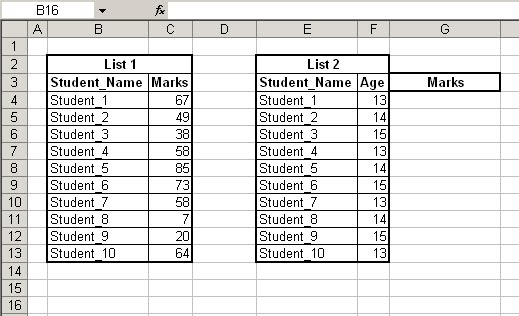
This formula is very useful when you have to find out value from a list, say there are two lists One with 2 columns Student_Name & Marks And another table Student_Name & Age As shown in the Image.


So with the help of VLOOKUP formula we can find out Marks in column G for Students Given in Colomn E
As shown in below image


We can see the entered formula in cell G4 "=VLOOKUP(E4,B3:C13,2,0)"
The formula has divided into the 4 parts.

= Vlookup(Lookup _value, Table Array,Column_number,Range_Criteria)
1. Lookup Vaue which is E4 (means which value we are going to find in List 1 )
2.Table array B3:C13 (You have to select total List1 )
3.Column number (Which coumns you want as output, as you can see there are 2 columns in List 1)
4.Rage ( It should be "0" or "FALSE", We will disscuss on same later on )
So now you have understood what we have to entered into each part of the Formula.
Let understand what actually the formula does .
1. Lookup Vaue which is E4 (means which value we are going to find in List 1 )
Formula first take Lookup Value and find lookup value in first column of Table Array
Means it actually finds "Student_1" in Column "B3:B13"
It get value "Student_1" in cell B4
after that it checks Column number (which we have given 2 in the formula).
And as B4 is column 1 of table array so 2 would be D4 and D4 is marks of Student_1
In such way it find out marks of Given Lookup Value
Questions!!!!
What happens when Formula doesn't find Lookup value in first column of table array ??
this is nice question, The formula simply gives Error of Not Found like this => "#N/A"
If you want to test you just change Lookup value means E4 to "Student_11" as Student_11 is not in the List1 it will show #N/A error
But its just a one result what for other marks for List2 ???
Now as you have created the formula you need not write it again in every cell Just copy cell G4 and Paste into Where you want to apply the formula That is G5:G13.
Isn't it easy ????
Formulas are just 10% of total excel power if you want to unleash the power of MS-Excel then start learning VBA. I would recommend to join a course which is prepared for absolute beginner such as :
Excel VBA MACRO Kick-start Course for absolute beginner

Sunday, April 4, 2010

Be familiar with Excel


Following are some tips

SPLIT WINDOWS AND FREEZE PANES

In excel you would need to use splitting function because Splitting a window allows you to work on multiple parts of a large spreadsheet simultaneously and Freezing the pane allows you to always keep one part of the spreadsheet (e.g., column or row labels) visible.

To use this function Drag the split horizontal and split vertical icons to the desires positionsClick on the freeze pane icon from the tool bar to freeze the panes

HIDE AND UNHIDE COMMAND

Hide and unhide function in excel Allows you hide and unhide particular rows or columnsSimplifies working with the spreadsheetPrevent certain information from being seen
To use hide and unhide Select the row(s) or column(s) to be hidden/unhiddenSelect Format : Row : Hide/Unhide or Format : Column : Hide/Unhide
MOVING AROUND A SPREADSHEET WITH CTRL, SHIFT, AND ARROW KEYS

It saves your lots of timeMove the first or last cell of a contiguous data block without scrolling

To use scrollfree movement use following keys

Ctrl-Arrow : Move to the first/last data cell in the arrow direction

Ctrl-Shift-Arrow : Selects the cells between the current cell and the first/last data cell


NAME CELLS/RANGES

Why to use :
Allows specific cells or cell ranges to be referred to by name
Allows you to write equations such as = Quantity*Cost instead of =$B$12*$C$4


How to Use:

Select the cell or cell rangeSelect Insert : Name : Define from the menu bar


SORT COMMAND

Use :

Correctly sorting a series of rows or columns without disassociating the data is critical to many modeling efforts


how to use:

To sort by single category, just click into column, NEVER highlight column (would destroy table integrity)To use multiple criteria, click any cell of data table, select Data…Sort Data table will be selected

Monday, March 29, 2010

Basic Excel Formulas for Newbiee

Hi friends you should know the basic excel formulas when you are newbie.
Following some formulas I learned when I used excel first time.

Sum:

This formula is use to get sum of selected range.

one most important thing you should know is every formula is begin with "="

Just start your formula with "=" sign

If you have 1,2 & 3 these numbers in A1, A2 & A3 respective cells you want sum in A5 cell as given in above figure.


then just enter "=SUM(A1:A3)" in cell A5 and you will get result 6 the sum value .


This is a example of simple excel formula if you want to learn more advance and important formula refer below link:

how to use vlookup formula in excel

Thursday, March 25, 2010

Boost your speed in excel with keyboard shortcuts

I stumble upon excel When first time I used it.It has many formulas which helps you to manipulate data and get desire output.When you are new user of excel and want to speed up then you should know the shortcut keys. Following shortcut keys Will help you to speed up in excel


Formatting
Keystroke Function
[Ctrl]B Bold the selection

[Ctrl]I Italicize the selection

[Ctrl]U Underline the selection
[Ctrl]5 Strike through the selection
[Alt] and ' Open the Style dialog box
[Ctrl]1 Open the Format Cells dialog box
[Ctrl][Shift]~ Apply General format
[Ctrl][Shift]$ Apply Currency format
[Ctrl][Shift]% Apply percentage format
[Ctrl][Shift]# Apply Date format
[Ctrl][Shift]@ Apply Time format
[Ctrl][Shift]! Apply Number format
[Ctrl][Shift]^ Apply Exponential number format
[Ctrl][Shift]& Apply an outline border to selection
[Ctrl][Shift] and _ Remove outline border from selection
Navigation

Keystroke Function

[Ctrl][Page Down] Move to the next wor sheet in a workbook
[Ctrl][Page Up] Move to the previous worksheet in a workbook
[Ctrl][F6] Cycle between open workbooks
Arrow keys Move one cell up, down, left, or right Navigation (continued) [Ctrl] and an arrow key Move to the edge of the data region
[Home] Move to the beginning of a row
[Ctrl][Home] Move to the beginning of a worksheet
[Ctrl][End] Move to the end of the used portion of a worksheet
[F6] Move between panes in a split worksheet
[Ctrl][Backspace] Display the active cell
[Enter] Move down a cell in a selected range
[Shift][Enter] Move up a cell in a selected range
[Shift][Tab] Move one cell to the left in a selected range
[Ctrl] and . (period) Move from corner cell to corner cell in a selected range
Selection techniques
Keystroke Function
[Shift][Spacebar] Select a row
[Ctrl][Spacebar] Select a column
[Ctrl]A Select an entire worksheet
[Shift][Home] Select from current cell(s) to the beginning of the row
[Shift][End][Enter] Select from current cell(s) to last used cell in row
[Ctrl][Shift][Home] Select from current cell(s) to the beginning of the worksheet
[Ctrl][Shift][End] Select from current cell(s) to the end of the used portion of a worksheet
[Ctrl] and * Select the data region surrounding the active cell
[Ctrl][Shift]O Select all cells that contain a comment
[Ctrl] and [ Select cells that a selected formula directly references
[Ctrl] and ] Select formulas that directly reference the active cell
Workbook basics
Keystroke Function
[Ctrl]O Open a workbook
[Ctrl]N Create a new workbook
[Ctrl]S Save a workbook
[F12] Open the Save As dialog box
[Ctrl]P Print a workbook
[Ctrl]W Close a workbook
[Shift][F11] Insert a new worksheet
[Ctrl]9 Hide selected rows
[Ctrl][Shift]9 Display hidden rows in selection
[Ctrl]0 Hide selected columns
[Ctrl][Shift]0 Display hidden columns in selection
[Ctrl]F Open the Find tab of the Find And Replace dialog box
[Ctrl]H Open the Replace tab of the Find And Replace dialog box
[F7] Run a spelling check on a worksheet or selected text
Working with data
Keystroke Function
[Enter] Complete an entry and move to the next cell
[Alt][Enter] Insert a new line within a cell
[F2] Enable editing within a cell
[Ctrl][Enter] Fill selected cells with an entry you type
[Ctrl]D Fill data down through selected cells
[Ctrl]R Fill data through selected cells to the right
[Ctrl][F3] Create a name
[Ctrl]K Insert a hyperlink
[Ctrl] and ; (semicolon) Insert the current date
Working with data (continued)
[Ctrl] and : (colon) Insert the current time
[Ctrl]X Cut the selected text or objects to the Clipboard
[Ctrl]C Copy the selected text or objects to the Clipboard
[Ctrl]V Paste the contents of the Clipboard
[Ctrl]Y Repeat last action
[Ctrl]Z Undo last edit
[Ctrl][Delete] Delete from the insertion point to the end of the line
[Ctrl][Shift]+ Add blank cells
[Ctrl]- (hyphen) Delete selected cells
[F11] Create a chart from a range of data
Formula shortcuts
Keystroke Function
= Begin a formula
[Ctrl][Shift][Enter] Enter a formula as an array
[Shift][F3] Display the Insert Function dialog box (Paste Function in Excel 97)
[F3] Paste a defined name into a formula
[Alt]= Insert a SUM AutoSum formula
Type a function in the Formula bar and press [Ctrl]A Display the Function Arguments dialog box
[Ctrl][Shift] and " Copy the value from the cell above the current cell into the current cell
[Ctrl] and ' Copy a formula from the cell above the current cell into the current cell
[Ctrl] and ` Toggle between display of formulas and cell values
[F9] Calculate values for sheets in all open workbooks
[Shift][F9] Calculate values for the current worksheet
[Esc] Cancel an entry you're making in a cell or in the formula bar